
User guide › Restaurants and cafés
Restaurants and cafés
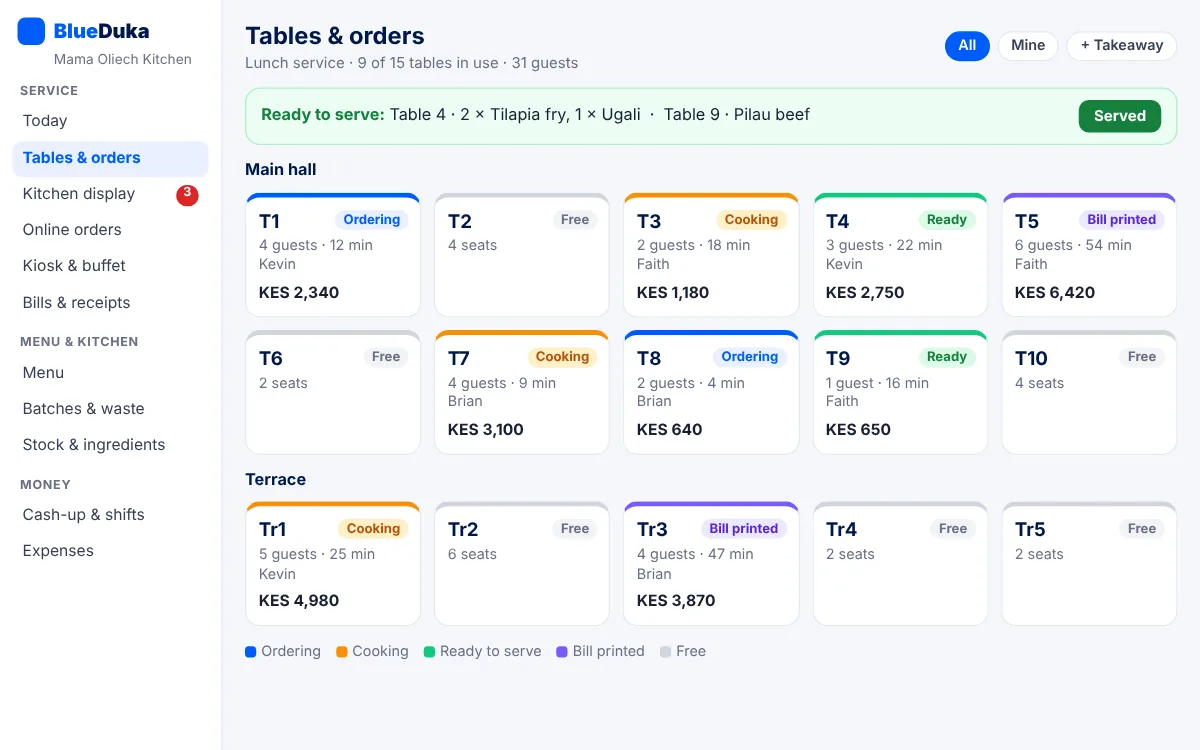
A business set up as Restaurant or café opens on Tables and has its own plans: Café (KES 1,499 a month), Restaurant (KES 2,999) and Restaurant Pro (KES 5,999), after a one-month trial of Restaurant Pro. There is no free plan: when nothing is paid, every record is kept but new orders wait until a plan is paid. Restaurants are being tried with a few businesses first: call or WhatsApp BlueDuka to join.
A restaurant account only has what a restaurant needs: shop features such as promotions, loyalty points, invoices, credit reports and customer service roles are left out, and staff roles include Waiter and Kitchen. Screens update by themselves as orders, tables, the kitchen and payments change, on every device, so nobody needs to refresh.
-
Your own screens: a restaurant or café doesn't see the shop's till, online shop or invoices. Its menu is
laid out the way restaurants work:
- Service: Today (sales, guests, tables in use, how long the kitchen is taking, best sellers, how guests paid, and the steps left before your first service), Tables & orders, Kitchen display, Online orders, Kiosk & buffet, Bills & receipts.
- Menu & kitchen: Menu (dishes and drinks in sections, with photos, prices and a few words for guests; switch one off when it runs out), Batches & waste, Stock & ingredients, Suppliers & purchases.
- Money: Cash-up & shifts, Expenses, Regulars & tabs, Accounting.
- Staff: Staff & roles, Shifts & handover, Hours & pay. Then Owner view, Service reports and Floor & kitchen setup.
- Set up (Floor & kitchen setup): add your tables (and areas such as Terrace). On the Restaurant plan, add stations (Kitchen, Bar) and choose which menu sections go to each, add item options (Size: Small, Large +KES 50) and recipes (one plate of Pilau uses 250 g of rice and 30 ml of cooking oil). Choose a service charge and whether waiters may take payment.
- The menu (Menu): add sections (Breakfast, Mains, Drinks), then each dish or drink with its price, section, photo and a short description. Bottled drinks and packaged snacks can have a barcode (type it, use a USB or Bluetooth scanner, or tap the camera on a phone) and Count its stock on: they are then received into stock by scanning (Stock & ingredients or Suppliers & purchases) and come off stock as they are sold. Dishes cooked in the kitchen leave it off: their ingredients are counted through recipes. Scanning a code nothing has yet offers to add it. Ingredients you buy but don't sell as they are (rice, cooking oil) go under Ingredients & stock items: they keep their stock and work in recipes, but waiters and guests never see them.
- How ingredients are counted: each ingredient is counted in the unit you buy it in, chosen under Counted in when you add it: cooking oil, milk and juice in litres; onions, tomatoes, rice, flour, sugar and meat in kilograms; eggs and bread in pieces. Add its buying cost per litre or kg (a 20 litre jerrycan for KES 5,000 is 250 per litre); purchases keep it up to date. Receive stock in that unit (a 20 litre jerrycan is 20, a 50 kg bag of onions is 50). Recipes and waste can then be typed in ml or grams: one plate uses 30 ml of oil and 150 g of onions, and BlueDuka takes 0.03 litres and 0.15 kg off the stock. As a guide, a tablespoon is about 15 ml, a cup about 250 ml and a medium onion about 150 g. An ingredient first added in pieces by mistake can be changed under Counted in; then count it and correct the stock, and check its recipes.
- Taking an order: tap a free table, choose the number of guests, Add items (tap them, or scan a bottled drink's barcode with a scanner or the phone's camera), then Send to kitchen: the items become a round and a kitchen copy prints (each station on its own printer, set per device). Add more rounds any time. Takeaway opens an order without a table.
- Changing an order: take off an item not yet sent at any time; an item already sent needs a reason and the void permission (a manager's approval above the amount set in Approvals). Move or merge tables, hand an order to another waiter, or cancel it (with a reason). Everything is in the activity log and the restaurant reports.
- Paying: Pay settles the whole bill, or on the Café plan and above Choose items for split bills, with one or more payments (cash with change, M-Pesa code or PIN prompt, card, bank), the service charge and a tip (recorded for the staff, never part of sales or the till). The bill becomes one ordinary sale: receipts, M-Pesa, stock, books and eTIMS work as for any sale. A bill can never be charged twice.
- Who has paid: every table shows where its bill stands: Unpaid, Bill printed (waiting to pay), Payment pending (an M-Pesa prompt sent, not answered yet), Part paid or Paid. The cashier or a manager can take a part-payment (a guest pays some now, online only); it is used first when the rest is paid, so the whole order is still one sale. An order with a part-payment can't be cancelled, and items can't be taken off below what was already paid.
- Shifts & handover: a waiter taps Start my shift (morning, evening...). A manager can give them a section or particular tables. Take a break and Back from break keep the times. The shift shows, live, the bills of the orders they took, the guests, what they took in cash and M-Pesa, their tips (kept apart from the till) and their tables still open. End shift & hand over never closes or pays a table: open tables stay with them or go to a colleague on shift, by name, with a note for the next shift. The waiter says how much cash they hand in; a manager counts it and approves (a different manager for their own shift). A short or over count needs a note and stays on record. A manager can end a shift someone forgot, with a reason (in the activity log). Sales stay with the waiter who took the order, even after it is handed on. Switch on Waiters start a shift before opening tables in Floor & kitchen setup to make shifts required. When the shop uses Hours & pay, starting and ending a shift also clocks in and out.
- Batches (Restaurant plan, Batches & waste): for dishes cooked ahead (a pot of pilau, a tray of chapatis), a manager opens Batch dishes and taps Cook in batches on the dish, with a usual number of portions and, if you like, how many hours it may be served. A dish without a recipe shows Add recipe: write what one plate uses there, and the batch settings follow. Change and Stop are on each batch dish. Cook a batch takes the recipe's ingredients for all its portions out of stock at once; plates sold then come out of the pot, so nothing is counted twice. A plate counts as paid for from the pot when its bill is paid; plates already served on tables not yet paid show as on tables. Each pot shows the portions left in the pot and warns when it is past its time. Finish batch records only what is really left in the pot as leftover; plates on unpaid tables stay counted from that pot when the tables pay, so they are never wasted or used twice. With no pot open, a plate is treated as cooked to order and uses its recipe.
- Waste: Record waste for anything thrown away (spoiled, past its date, burnt, dropped, sent back, wrong order, leftover) with how much. A stock item comes out of stock; a plate uses its recipe's ingredients; portions from a pot just leave the pot. Each record keeps its cost. Set Waste a manager must approve in Floor & kitchen setup: bigger waste recorded by the kitchen waits on the Waste tab (managers get a notification) and nothing leaves stock until it is approved. The Report tab shows what waste cost, as a share of sales, by reason, item and person, and how much of each batch was sold or wasted. Waste is a stock loss in the books; ingredients used for dishes are cost of sales.
- Online orders (Restaurant plan): your own link and QR code where customers order from your menu to collect or for delivery, and pay by M-Pesa or when they get it. Open it in Online orders > Online menu & link; Put the whole menu online adds every dish and drink (ingredients never show), or switch single items with Sell online in Menu. Sold-out items are greyed out and can't be ordered. A new order rings on Online orders (and phones); Accept & send to the kitchen puts it on the kitchen screen as a takeaway named after the order (WEB-00012 Jane). When the kitchen marks it ready, a collection order turns Ready on the customer's page; a delivery waits until you tap Out for delivery with the rider's name and phone, and the customer sees who is coming and can call them. The rider's link lets them say it was delivered and what they collected. Customer has it records one sale for the order (paid online, at the door or to the rider): it shows in Today, Bills and the reports and uses the dishes' ingredients like any bill. Online orders can't be paid or changed from the floor. Cancelling takes them off the kitchen screen (a paid order is refunded by M-Pesa first). Orders not accepted within 5 minutes show as an alert.
- Self-service kiosk and buffet (Restaurant Pro, Kiosk & buffet): a tablet or computer where guests order and pay by themselves. A manager taps Kiosks > Add a kiosk and gets an 8-letter code (it works once, for 15 minutes); on the kiosk device open BlueDuka, tap Use this device as a self-service kiosk and type it. From then on that device only shows your menu (or buffet tickets): it never signs in as staff, can't open any staff screen, and starts again after each order or two minutes without a touch. Guests choose dishes (with their options) or buffet tickets (adults and children), then pay with an M-Pesa prompt on their phone or at the counter. Paid orders become one sale each and food goes to the kitchen as "Kiosk 042". Guests get their number and a QR ticket. Put Collection screen on a TV: it shows numbers being prepared and ready (with a sound). At the counter or the buffet door, Orders > Ticket scans the QR code (or type the number): food is handed over once it's ready, buffet guests are let in once, on the day they paid. Counter orders not paid within 30 minutes are cancelled. Buffets sets each buffet's adult and child price and the hours it's sold. To stop a kiosk, Remove it (it stops at once) or make a New pairing code. Staff can also hold the restaurant's name on the kiosk for 8 seconds to stop it.
- Kiosk receipts: connect a receipt printer (58 or 80 mm, network, USB or Bluetooth) to the kiosk: hold the restaurant's name for 8 seconds, choose Set up the receipt printer, find or type the printer, Test and Save. Each order then prints its receipt with the guest's number: PAID with the items, VAT, the M-Pesa payment and the QR ticket when paid by M-Pesa, or PAY AT THE COUNTER with the amount to pay. When a counter order is paid, the kiosk (if still on that order) and the counter's printer print the paid receipt.
- What needs attention: Today and Owner view start with alerts, each opening the place to deal with it: the kitchen running late, food standing ready, guests waiting on the QR menu, bills printed but not paid, waste or handovers to approve, batches past their time, shifts left open, running low, approvals and cash short today. Everyone sees only what they can act on. The most urgent also go to managers' phones as notifications (each one now and then, not over and over).
- Owner view (owners and managers): today, yesterday, 7 or 30 days or this month, for one branch or all of them: sales and money collected (against the period before), what is still to collect (open tables and tabs), guests, sales by day, how guests paid, best sellers, orders by status and type, items taken off after reaching the kitchen, cancelled orders, discounts and returns, an estimated gross profit (dishes at their recipe's cost, other items at their cost; it says how much of the sales had a known cost), cash counts of tills and waiters, waste, what is running low and, with several branches, each branch side by side. Every figure comes from the records. A manager given one branch sees only that branch.
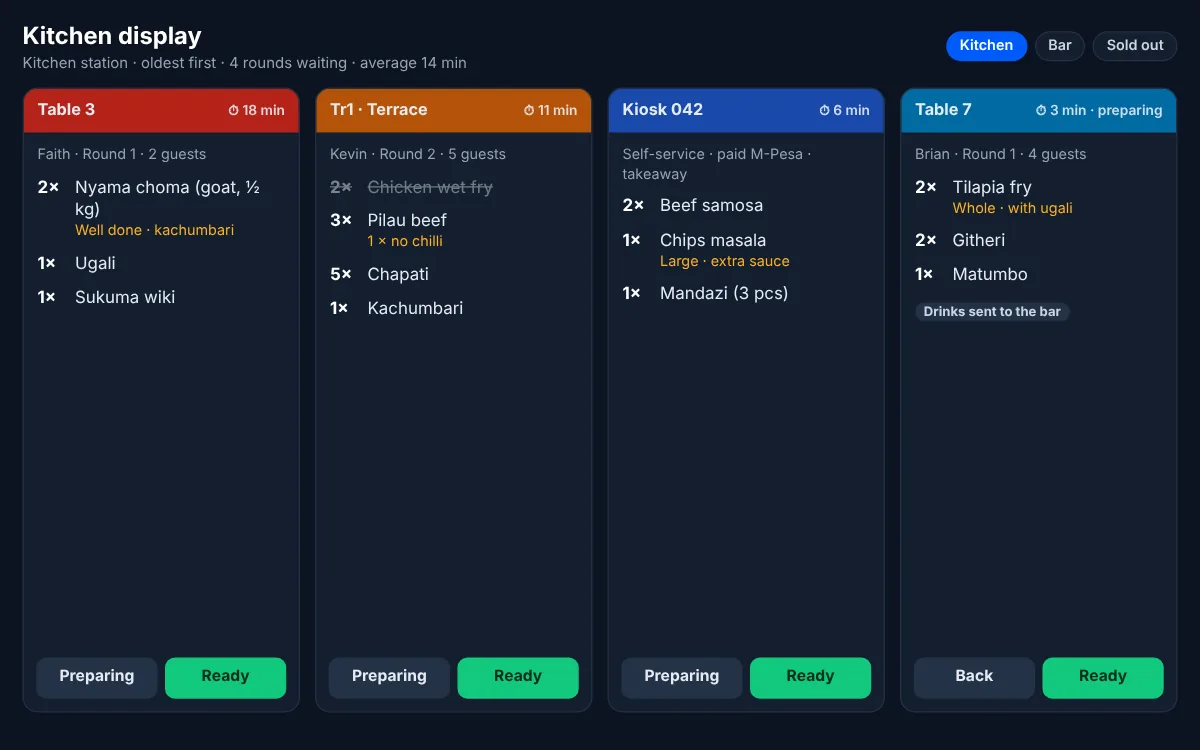
- Kitchen screen (Restaurant plan): rounds appear by themselves with a sound, oldest first, with the table, the waiter and how long they have waited. A round nobody has started rings again every 20 seconds, and a flashing bar shows how many are waiting, until someone taps Start preparing. Each ticket has one big button for the next step: Start preparing, All ready, then Served; tap a single item to mark just that one ready. The screen stays on while it is open. Test sound checks the volume. In a browser, sound works once anyone has tapped the page since it was opened; after a reload a red bar asks for one tap. The BlueDuka app (Windows or Android), or the website installed as an app, always rings without a tap. On an Android tablet, set the screen timeout to the longest. Give kitchen staff the Kitchen role.
- Ready to serve: when the kitchen marks food ready, the waiter who took the order is told at once, on whatever screen they are: a sound, a message with a Tables button, a notification on their phone (and on Windows), and a Ready to serve list on the Tables screen, grouped by table. They tap Served when it is on the table. Waiters only see and serve their own tables; managers see all.
- Sold out: on the kitchen screen, Sold out lists every dish and drink with a switch. Switch off what has run out: waiters see it greyed out and can't add it, and guests see "Sold out" on the QR menu. Switch it back on when it is ready again. The kitchen team and managers can do this; each change is in the activity log.
- QR menu (Restaurant plan): Floor & kitchen setup > QR codes (PDF) downloads printable cards (four to a page, with your name, the table and a large QR code) to cut out and put on the tables; a single table's card is in that table's settings. Guests scan it with the phone camera, no app needed, and see your menu with photos, descriptions and prices in your shop's currency (add them in Menu). They choose items, add a note and send the order, or tap Call the waiter or Bring the bill. A waiter accepts it on the Tables screen (and gets a notification) and it goes to the kitchen as a round. The guest's page then shows whether the order was confirmed, is being prepared, or is ready. Guests pay at the table as usual. A new code for a table (in its settings) stops the old card working.
- Without internet on the Windows till and the Android app: open tables, add and send rounds, print, take payment (cash, card, typed M-Pesa codes) and void within your own limit. Everything uploads by itself when the internet is back; a change the server can't accept (for example a table paid on another device) stays on the Tables screen with the reason. The QR menu, the kitchen screen and Sold out need internet.
- Roles: Waiter (own tables, own shift), Cashier (every table, moving, payment, part-payments), Kitchen (kitchen screen, batches and waste), Manager and owner (everything, including shifts, cash counts and approving waste). The owner can switch single permissions on or off as for shops.
Rooms, events and stays (Restaurant Pro)
For a restaurant with rooms, a guest house, a lodge or a small hotel. Open Rooms, events & stays. There is no limit on the number of rooms.
- Setup (owner and managers): add your room types with the price a night and how many people each sleeps (for example Single, Double, Family room), then each room with its number. A room type can be shown on the online booking page or kept for the front desk only. The picture button on a room type adds up to 8 photos that guests see on the online booking page.
- Front desk: today's arrivals, guests leaving, guests in the house and the next 7 days. New reservation takes the dates, room type, number of guests and the guest's name and phone; the room can be given now or at check-in. BlueDuka never lets a room type be booked beyond the rooms you have on any night, and never puts two guests in one room on the same night. Rooms marked out of order don't count.
- Deposits: take a deposit in cash, card or an M-Pesa code, or send an M-Pesa prompt to the guest's phone; it is recorded by itself when they pay. Deposits count in the till and the books straight away.
- Check-in: choose the room and, for the guest register, the ID or passport number and nationality. Only the front desk sees these. A room that hasn't been cleaned asks before letting the guest in.
- Charging to the room: on a restaurant or bar bill, Charge to a room puts it on the guest's account instead of taking payment (the cashier or receptionist does this). It shows on their stay and is paid at check-out.
- Check-out: the nights to charge (fewer if they leave early, more if they stayed on), less the deposit, plus what was charged to the room. One payment can cover everything; several payments work too. The room nights become one ordinary receipt, so eTIMS, reports and the books work as for any sale. The room is then marked Needs cleaning. A manager can leave an unpaid balance on the guest's account.
- Cancelling: a reservation can be cancelled, or marked No-show once the arrival day has come. A deposit already paid is kept as a cancellation fee (its own receipt); to give it back, refund that receipt from Bills.
- Housekeeping: every room with its status (clean, needs cleaning, out of order), whether a guest is in it, arriving or leaving today. Housekeepers see rooms only, never guests' names or money.
- Calendar: every room over two weeks. Tap a stay to open it, or an empty day to book that room.
- Online booking page (Setup > Online booking page): guests choose their dates, see which rooms are free with the price for their stay, and book. With a deposit set (for example 30%), an M-Pesa prompt asks for it and the room is held for 20 minutes while they pay; unpaid holds are released by themselves. With no deposit, the room is simply reserved. Guests get a private link to see their booking, and can cancel it there until they have paid. M-Pesa must be connected for a deposit.
- Booking sites (Airbnb, Booking.com, Expedia, Vrbo...): in Setup, tap a room, then Booking sites. Copy the room's own calendar link into each site's "Import calendar", so the site closes the nights booked in BlueDuka (only dates are shared, never guests' names). Then paste each site's "Export calendar" (iCal) link into the room: every 30 minutes BlueDuka reads it, and each booking there becomes a reservation in that room, follows changed dates, and is cancelled if it is cancelled on the site. Such a reservation has no price (it was paid on the site): if the guest pays at the desk, a manager sets the price before check-out. Sites read calendars every few hours, so on busy days check new bookings; if a site booking lands on a room already taken, it is kept without a room and the desk is told to give it another.
-
Events and group bookings (the Events tab): weddings, conferences, meetings, parties and tour groups.
- Add your halls and spaces in Setup (a hall, a garden, a boardroom) with how many people they hold, a price an hour, a day or an event, and photos.
- New event takes the name, dates, number of guests and the organiser. It starts as an enquiry.
- Book a space for set hours (past midnight works too). A space is never given to two confirmed events at the same time; confirming an enquiry checks this.
- Meals, drinks and extras: pick menu items (stock and reports see them) or add anything else with a price, for example "Lunch buffet" for 150 people, a PA system or decoration.
- Rooms for the group: add rooms from the event. Choose who pays for them: the organiser on the event's bill, or each room at its own check-out.
- Take deposits (or an M-Pesa prompt to the organiser), then Close the bill: one receipt with the spaces, meals and extras (and the rooms, when the organiser pays them), paid by the deposits first. What isn't paid stays on the organiser's account. Cancelling keeps any deposit as a fee, refunded from Bills if you choose.
- The online page shows your halls and spaces with photos; guests send an enquiry (date, guests, spaces, rooms, meals) that arrives in Events for you to price and confirm.
- Report (owner and managers): occupancy, room revenue, the average price a night (ADR), revenue per available room (RevPAR), revenue by room type, what was charged to rooms, cancellations and no-shows.
- Roles: Receptionist (reservations, check-in and check-out, deposits, charging bills to rooms, events), Housekeeper (room status only), Manager and owner (also setup, prices and the report).
← Installing BlueDuka and working offline · All topics · Creative studios (design, web, social media, branding) →
Download the whole guide (PDF)
Need help? Call or WhatsApp the BlueDuka team on +254 727 177 155.