
User guide › Getting started (owner)
Getting started (owner)
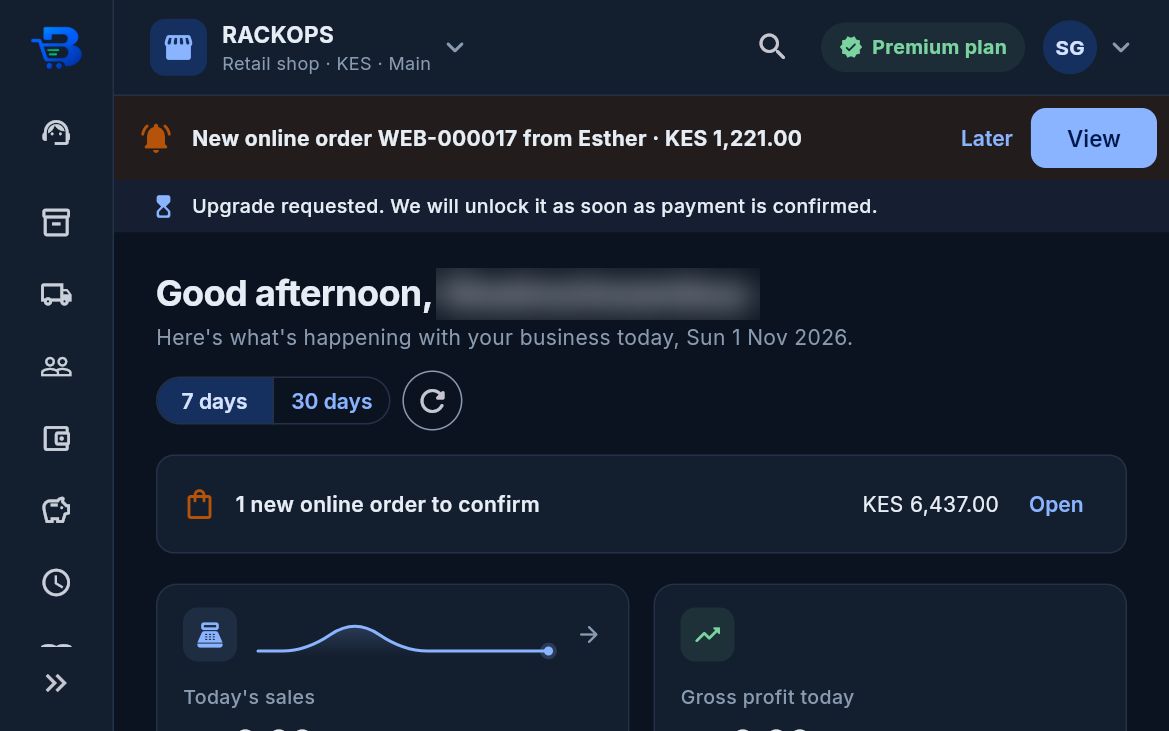
Try it first: on the login page, Try a demo business, no sign-up opens a sample business filled with realistic records. Choose the kind you want to see: a shop, a restaurant and hotel (tables, rooms, guests and an event), a company on the ERP (three branches, purchasing, production, staff and pay) or a creative studio (jobs, invoices and a retainer). Change anything you like: the demo is deleted after 3 hours, and it never sends messages, M-Pesa prompts or anything else outside the app.
Your account: when you sign up, BlueDuka emails you a 6-digit code; type it to confirm your email before you open a shop. Forgot your password? Tap Forgot your password? on the login page, and we email a code to set a new one (codes work 15 minutes; everywhere you were logged in is logged out).
Plans: the Free plan is for trying BlueDuka: just you (no staff), 5 products, 10 sales in total (they don't start again each month; sales made during the free trial don't count) and up to 10 customers owing money at a time. Staff added during the free trial are paused (nothing they recorded is lost) until you choose a paid plan. When a limit is reached the app says which plan lifts it; upgrade in Subscription & Billing and pay by M-Pesa, for 1, 3 or 6 months, or a year for the price of 10 months (2 months free). Every new shop gets every feature free for the first month. ERP and manufacturing companies have their own plans (ERP Starter KES 4,999, ERP Business KES 9,999 with branches and warehouses, ERP Enterprise KES 19,999 with the API and no limits) after a month of everything free; restaurants and creative studios have theirs too (see 9b and 9c).
Business system: when you open a business, choose the system it runs on: Retail POS (shops, supermarkets, pharmacies, hardware...), Wholesale and distribution, Restaurant and café, Manufacturing and production, General business ERP (finance, procurement, HR and payroll, CRM, assets, budgets, branches) or Creative studio. Retail, restaurants and studios then pick their kind (a pharmacy, a café, web design...). One login can own several businesses of different systems, each with its own plan, staff and records.
Start small, grow later: a shop can start as a plain POS and add more when it needs it. The owner opens Grow your business (shops) or the workspace home (wholesale, manufacturing, ERP):
- Included lists what came with the system; Add when you need it has a switch for each extra (loyalty points, the online shop, CRM, delivery, warehouses, budgets, assets...). A feature that needs a bigger plan says so when you switch it on. Switching one off hides it; its records are kept.
-
Move up to a bigger system: a shop moves up to Wholesale or ERP, a wholesaler to ERP or Manufacturing.
Everything recorded stays (products, stock, sales, customers and what they owe, suppliers, the books, the team);
the menu changes and the features already used stay on. Tap Move up on the system you want: the next screen
says what changes and, for a move to Manufacturing or ERP (which have their own plans), lists those plans with
their monthly prices and marks the one recommended for your branches and team. Pick one:
- On a free trial: the trial carries on as a trial of the new system; pay for the plan when it ends.
- On a paid plan: the days you have left are turned into days of the new plan, worth the same money (20 days left of Business at KES 1,999 are worth about KES 1,333: that is 4 days of ERP Business at KES 9,999, or 8 days of ERP Starter at KES 4,999), starting at once, so nothing you paid for is lost. Then pay the new plan's monthly price by M-Pesa in Subscription & Billing, which opens for you after the move.
- Moving from Retail POS to Wholesale uses the same plans: nothing changes in what you pay. ERP and manufacturing companies can switch the Point of sale on to keep a counter or factory shop.
- Settings: shop name, phone, receipt footer, and the payment methods you take.
- Inventory: add each product once, with selling price, buying cost and opening stock. The same name can't be added twice. To record more of a product, open it and add stock.
-
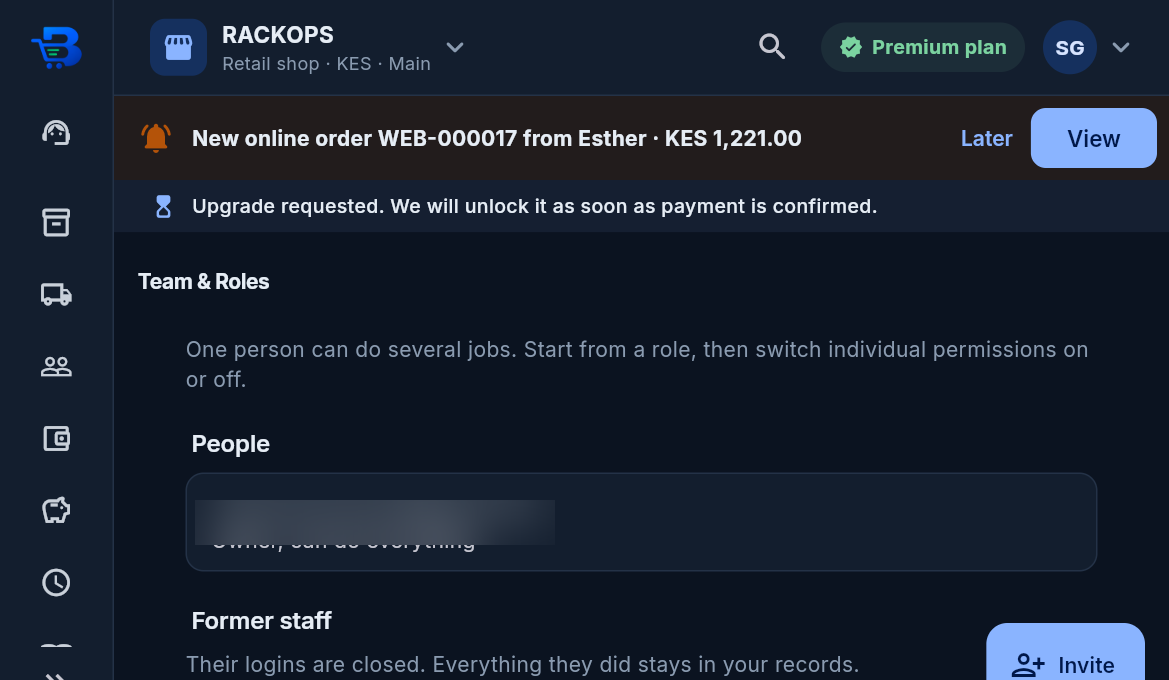
Team & Roles: invite staff by email.
- BlueDuka emails them a temporary password; they log in, choose their own password and join your shop.
- Pick a role (Cashier, Manager, ...).
- With several branches, also pick the branches they work in. They only see those branches. Only managers and accountants work in several branches and switch between them; cashiers, customer service and stock staff work in one (the first one picked, or the main branch).
- More than one role: a person can carry several default roles at once (a manager who is also the quality manager, a storekeeper who is also a quality inspector). Open them in Team & Roles, keep their main Starting role and tick the others under Also carries these roles; their permissions are added together. If the combination lets one person do two duties that should be separate (order goods, receive them and pay for them; set pay and pay salaries; make goods and release them from quality control; sell and check the till), BlueDuka warns you. It is allowed, for a small team, but it is safer to split them.
- Who can hand out roles: only the owner changes what someone can do. Someone allowed to invite staff (a manager or HR officer) can only invite people into a role whose permissions they hold themselves, so nobody can create someone more powerful than they are. Only the owner invites managers and outside accountants.
- Colleagues' details: everyone on the team sees who works there and their role. Phone numbers and exact permissions are shown only to the owner, HR and those who invite staff.
- Who sees what: the owner and managers see everything; the owner can take any power away from a manager (switch it off in Team & Roles) or keep them to some branches. Only the owner and managers change the shop's settings (profile, payment methods, online shop, computers, points rules) and approve requests. Accountants see the books, expenses, reconciliation and reports only. Other staff see neither the settings nor the books.
- Subscription & Billing: your plan and paying by M-Pesa. New shops get a month with every feature.
Download the whole guide (PDF)
Need help? Call or WhatsApp the BlueDuka team on +254 727 177 155.